
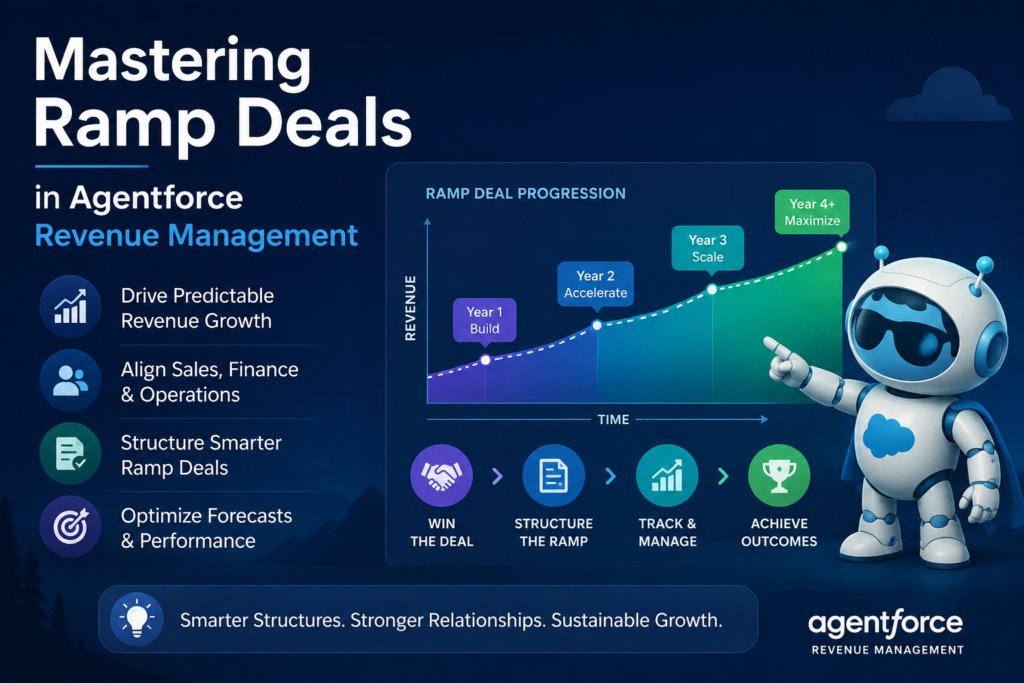
Mastering Ramp Deals in Agentforce Revenue Management
By : Ajay Partap Singh
Enterprise software deals rarely land on a fixed, unchanging quantity from day one. A customer might start small, prove out value in year one, and then scale usage sharply in years two and three. Sales teams have always had to model this kind of phased growth manually — juggling separate quotes, spreadsheets, and renewal opportunities to represent a single negotiated relationship. Agentforce Revenue Management (formerly Revenue Cloud) solves this with a native capability called Ramp Deals, which lets a
sales rep capture an entire multi-year, multi-phase commitment inside one quote or order. This article walks through what ramp deals are, the settings an administrator musten able before reps can use them, how the feature behaves once it is turned on, and a
complete worked example that shows a deal moving from quote to consolidated asset.
What Is a Ramp Deal?
A ramp deal is a single sales transaction — a quote or an order — that is broken into sequential time periods called segments, where the product mix, quantities, or pricing change from one segment to the next. Instead of creating three separate one-year orders for a three-year agreement, a rep builds one transaction with three segments:
Year 1, Year 2, and Year 3. Each segment carries its own start date, end date, quantities, and pricing adjustments, while the underlying commercial relationship stays intact as a single deal.
This matters for two reasons. First, it mirrors how sales conversations actually happen a customer commits to a scaling relationship, not three unrelated purchases. Second, it keeps downstream operations — billing, revenue recognition, and asset management
— synchronized to a single contractual thread rather than a set of disconnected records
that finance has to manually reconcile.
Ramp Deals for Lines vs. Ramp Deals for Groups
Revenue Management supports two approaches to ramping, and it is important to pick
the right one before configuration begins.
- Ramp Deals for Lines apply ramp segments to an individual product line. Each line item is ramped on its own, which works for simple deals involving a single product whose quantity changes over time.
- Ramp Deals for Groups apply ramp segments to a group of related line items at once. A rep bundles several products — for example a subscription, an add-on service, and asupport plan — into a group, and the entire group ramps together through the same set of segments. This is the newer and more capable model, and it is the one most organizations should standardize on for multi-product deals. Because most real-world ramp deals involve more than one product moving together,this article focuses on Ramp Deals for Groups, which is also the model Salesforcerecommends for new implementations.
Figure 1: A three-year ramp schedule made up of three sequential group segments.
Settings You Must Enable Before Building Ramp Deals
Ramp Deals for Groups is not active by default. It depends on several Revenue Settings toggles and a supporting page-layout change. Skipping any of these steps typically shows up later as a validation error or a group option that never appears in the
transaction line editor, so it’s worth configuring them in order.
- Turn on grouping in Quotes and Orders
Ramp Deals for Groups is built on top of the general grouping capability in Transaction
Management. From Setup, open Revenue Settings and turn on Enable Groups in
Quotes and Orders. Also enable Clone Quotes and Orders, since cloning is how reps
duplicate a segment to create the next year of a ramp schedule. - Turn on Ramp Deals for Groups
In the same Revenue Settings area, turn on the Ramp Deals for Groups in Quotes and
Orders setting. This activates the Is Ramped toggle and the ramp-schedule behavior on
quote line groups and order product groups. - Turn on multiple ramp schedules per transaction
If your sales teams need to manage more than one independent ramp inside a single
quote — for example, one product family ramping on an annual cycle and another
ramping quarterly — turn on Multiple Ramp Schedules Per Transaction. This allows up
to ten separate ramp schedules within one quote or order. Enable this setting before go-
live where possible; turning it on after ramp deals are already active can prevent in-flight
orders created between the two activations from being activated normally, which then
requires a migration script to resolve. - Update customized flows and pricing procedures
Organizations that customized their Product Discovery flow, their Transaction
Management pricing procedure, or their Product Configurator flow before these ramp
capabilities were introduced need to reconcile those customizations. The safest
approach is to clone the current prebuilt versions of the Discover Products flow, the
default pricing procedure, and the default Product Configurator flow, and then reapply
the organization’s customizations on top of the refreshed clones. - Add the Sales Transaction Line Editor to page layouts
The legacy Transaction Line Editor component does not support ramp deals for groups,
so the Sales Transaction Line Editor must be placed on the quote and order record
pages. While configuring it, expose these fields so reps and administrators can see
ramp behavior clearly:
– On quote line items and order products: Start Date, End Date, and Segment Type
– On quote line groups and order product groups: Start Date, End Date, Segment Type,
Is Ramped, and the group name field
– Ramp Identifier and Segment Identifier, useful for debugging and validating
configuration before go-live
– Unit Price Uplift, if the organization plans to negotiate year-over-year price increases
inside a ramp
One configuration detail is easy to overlook: if the pricing procedure includes an uplift- related pricing component, do not rename it. Renaming that component causes the system to keep applying the uplift internally while no longer showing the value in the
price waterfall, which makes the calculation look opaque to anyone reviewing it later.
Figure 2: The recommended order for enabling ramp-deal-related settings.
How Ramp Deals for Groups Work Behind the Scenes Once the settings above are active, the mechanics of a ramp deal are driven by a small number of concepts on the quote or order group.
– Group: a container of related line items that a rep creates by selecting multiple lines and choosing an action to group them together.
– Segment: a time-bounded slice of the ramp schedule. The first group a rep creates becomes the first segment once the ramp is turned on; every later segment is added bycloning.
– Ramp schedule: the ordered collection of segments that together represent the full lifeof the deal.
– Segment type: usually Yearly, Quarterly, or Monthly, which determines the expected duration used for date validation on each segment.
– Rampable products: products whose selling model supports being carried across segments, such as term-defined subscriptions. Products sold with a one-time selling model, like hardware, are not rampable — they still appear in the quote, but they aren’t part of the ramp identifiers and typically only live in the first segment unless explicitly re- added. When a rep turns on Is Ramped for a group and supplies start and end dates, the system automatically creates the ramp schedule, applies the group’s dates down to every rampable line, and assigns ramp and segment identifiers so the platform can later tell which lines belong to which year of the same underlying deal.
Worked Example: A Three-Year Scaling Agreement
To see the feature end to end, consider a fictional account executive, Priya, at a
company called Northwind Cloud, negotiating a three-year agreement with Meridian
Labs, a customer that wants to start with a modest footprint and scale up as its team
grows.
Step 1: Build the first segment
Priya creates a new quote for Meridian Labs and adds three products for year one: a one-time hardware kit (quantity 50), a term-defined Analytics Platform license (quantity 500), and a term-defined Managed Support plan (quantity 500). She selects the two term-defined lines, clicks Add Group, and saves. Transaction Management automatically creates a group and moves the selected lines into it. Opening the group’s side panel, Priya sets the segment type to Yearly, enters the start and end dates for year one, and turns on Is Ramped. Saving this converts the group into the first ramp segment, stamps ramp and segment identifiers onto the Analytics Platform and Managed Support lines, and leaves the hardware kit untouched because a one-time selling model is not ramp able.
Step 2: Add the following years by cloning
For year two, Meridian wants to double its license count and keep the hardware as-is. Priya clones the segment, selecting all line items so the hardware line comes along too, then updates the Analytics Platform and Managed Support quantities to 1,000. Transaction Management automatically advances the dates for the new segment. For year three, Meridian doesn’t need additional hardware but wants to keep the same license count as year two. Priya clones again, this time selecting only ramped line items, which copies just the Analytics Platform and Managed Support lines into a new third segment, leaving the hardware kit out entirely. She renames each group so the quote clearly reads Year 1, Year 2, and Year 3.
Step 3: Negotiate pricing across the ramp
Priya and her counterpart at Meridian agree on a 5 percent introductory discount in year one to reward the upfront commitment, followed by a 5 percent price uplift in year two and a 10 percent uplift in year three to account for the expanded scope. She applies the
discount at the group level for year one using the Adjustment Type column, and enters the uplift percentages in the Unit Price Uplift column for the year two and year three lines. Hovering over the Net Unit Price on any line opens the price waterfall, which shows exactly how each uplift and discount was applied — useful when Meridian’s procurement team asks for a breakdown before signing.
Step 4: Convert to an order and view the consolidated asset
With pricing agreed, Priya shares the quote, Meridian accepts, and she converts the quote into an order and activates it. On the Meridian Labs account, the Analytics Platform and Managed Support products each appear as a single consolidated asset rather than three separate assets — because they are rampable products governed by one ramp schedule. That asset’s Asset State Period related list shows three records, one for each segment, so anyone reviewing the account later can see exactly how quantity and pricing evolved without hunting through old quotes. The hardware kit, by contrast, generates a separate asset for each line, since it was never part of the ramp. A quick look at the asset’s dashboard shows quantity and monthly recurring revenue rising in steps that match the negotiated ramp — a single visual confirmation that the deal is tracking to plan.
Why Ramp Deals for Groups Matter for Revenue Operations
Beyond the sales conversation, ramp deals for groups solve a real operational problem. Finance and revenue operations teams no longer need to stitch together multiple orders to understand the true shape of a multi-year commitment. Billing schedules, revenue recognition, and renewal forecasting can all reference the same consolidated asset and its segment history, which reduces reconciliation work and lowers the chance of a segment being billed incorrectly or a renewal being triggered against the wrong quantity. It also gives sales leadership a cleaner way to evaluate deal health. Because ramp identifiers tie every segment back to one schedule, reporting can roll up the full lifetime value of a ramped agreement instead of treating each year as an isolated transaction. Considerations Before You Roll This Out
- Plan your segment types up front. Mixing Yearly, Quarterly, and Monthly segments
inside the same schedule is possible but adds complexity to duration validation, so keep
a consistent cadence where the business allows it. - Test with the Ramp Identifier and Segment Identifier fields visible. They make it far
easier to confirm that cloning and grouping produced the structure you expect before
you remove those fields from production layouts. - Coordinate the Multiple Ramp Schedules Per Transaction setting with your rollout
timing, since enabling it after go-live can strand orders created in between and require a
manual migration script - Revisit any custom Product Discovery, pricing procedure, or Product Configurator
flows that predate these ramp features, since older customizations may not recognize
grouped, ramped lines correctly.
Conclusion
Ramp Deals for Groups turns what used to be a manual, error-prone exercise in stitching together multiple orders into a single, structured transaction that mirrors how growth-oriented deals are actually negotiated. Getting there requires a short but specific setup checklist — enabling grouping, activating the ramp settings, refreshing any customized flows, and configuring the Sales Transaction Line Editor — but once that foundation is in place, reps can build multi-year, multi-product ramp schedules, apply segment-specific discounts and uplifts, and hand finance a single consolidated asset that tells the whole story of the deal. For any organization selling subscriptions or usage-based products that grow over time, that combination of sales flexibility and